
Conversation List
The Conversation List is where you manage and monitor all customer conversations within the system.
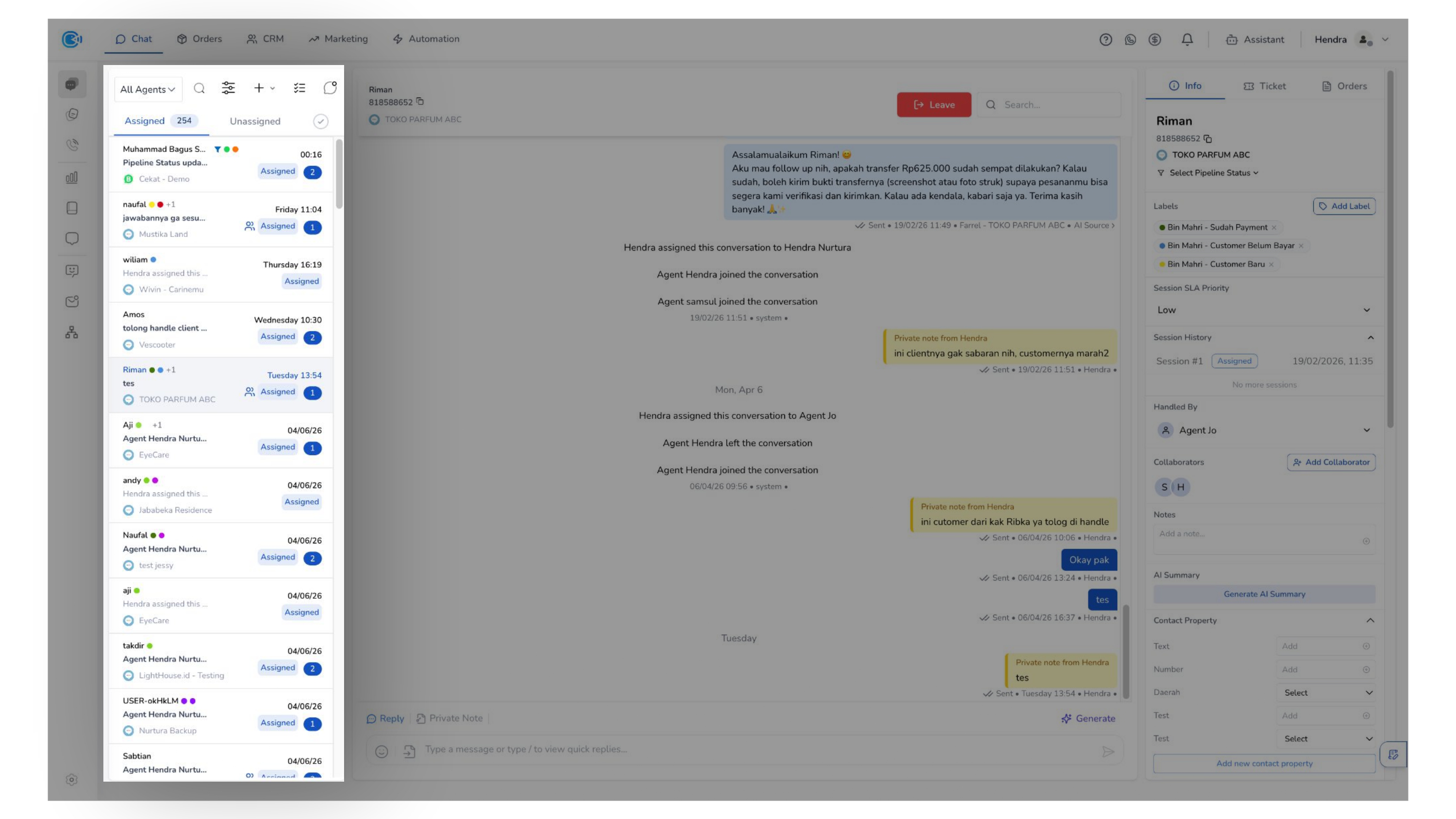
It provides both the tools and views needed to efficiently locate, prioritize, and handle interactions across different stages.
Conversation List Tools
At the top of the Conversation List, you will find a set of tools designed to help you search, filter, and manage conversations more efficiently.
a. Agent Filter
This feature allows users to filter conversations based on specific assigned agents, making it easier to monitor performance, review workloads, and analyze handling distribution.
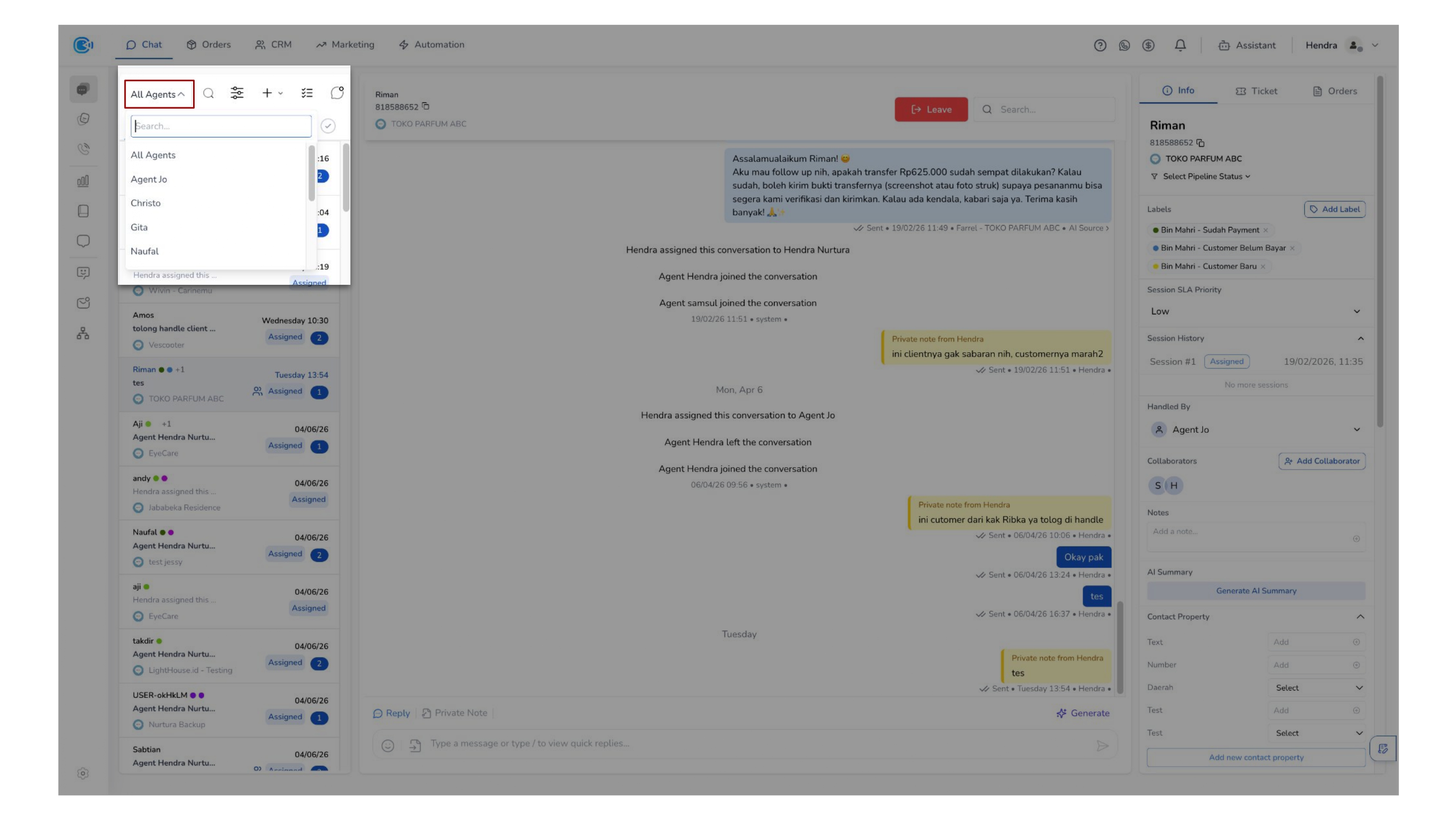
- By default, the filter is set to All Agents, displaying conversations handled by all agents.
- This feature is exclusively available to Super Agents, enabling them to have full visibility and control over team-wide conversations.
b. Chat Search
This feature allows you to quickly locate conversations using key identifiers such as contact number, customer name, or message content (keywords).
It helps you retrieve relevant conversations instantly without manually browsing through large volumes of chat data.
c. Chat Filter
This feature allows you to segment conversations using multiple parameters, enabling more precise monitoring and analysis.
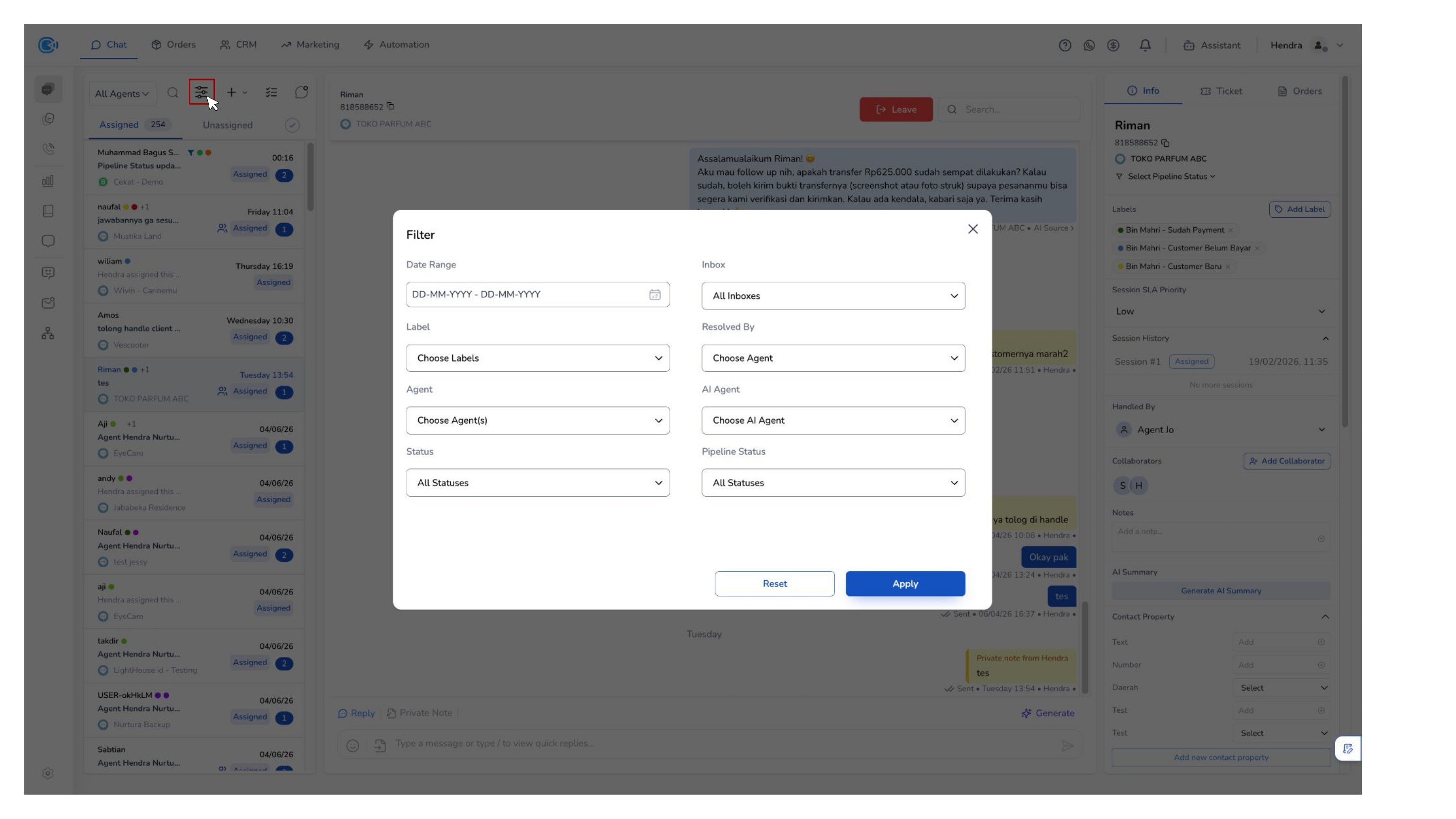
You can filter conversations based on:
- Date Range — View conversations within a specific timeframe
- Inbox — Filter by selected channel or inbox
- Label — Segment conversations using tags
- Resolved By — Identify conversations resolved by specific agents
- Agent — Filter by assigned handling agent
- AI Agent — View conversations involving AI
- Status — Filter by Open, Pending, or Resolved
- Pipeline Status — Track conversations based on workflow stage
These filters can be combined to help you monitor performance, identify bottlenecks, and analyze operational trends.
d. Add New
- Start New Chat — This feature allows you to initiate a new conversation with a customer.
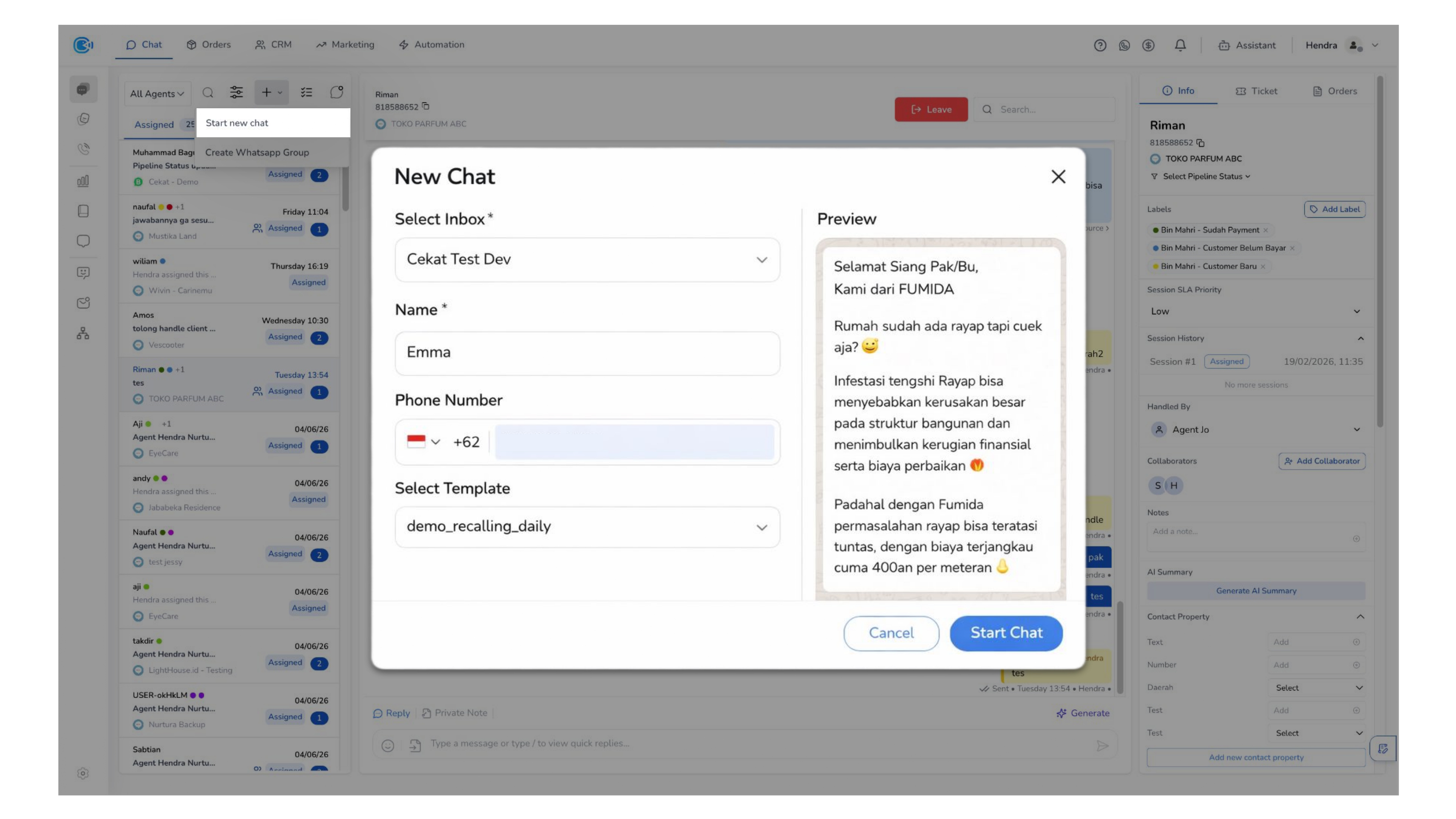 Messages must be sent using pre-approved templates in accordance with platform policies (e.g., WhatsApp Business / Meta requirements).
- Create WhatsApp Group — You can also create a WhatsApp group conversation directly from this feature, enabling multi-party communication within a single thread.
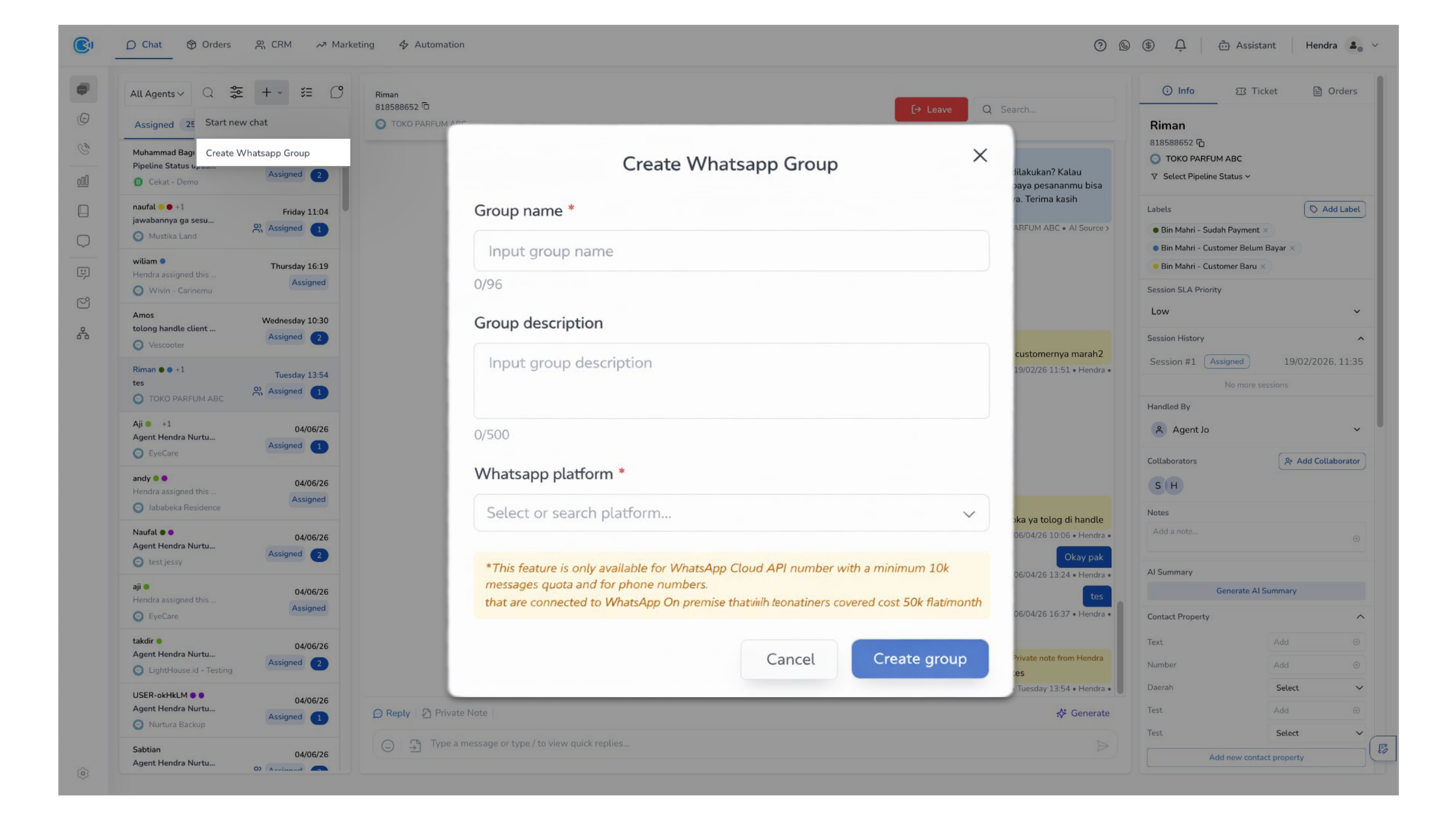
Notes: This feature is only available for WhatsApp Cloud API numbers with a minimum tier of 100,000+ messages.
Limitations:
- Numbers using WhatsApp Coexistence are not supported
- Additional limitations: TBC
e. Select Chat
This feature allows you to select multiple conversations and perform actions in bulk, helping reduce repetitive tasks and improve efficiency.
Available actions include:
- Batch Resolve — Resolve multiple conversations at once
- Assign Agent — Assign selected conversations to a specific agent
- Add Label — Apply labels to multiple conversations
f. Unread Chat
This feature allows you to quickly view conversations that require your attention.
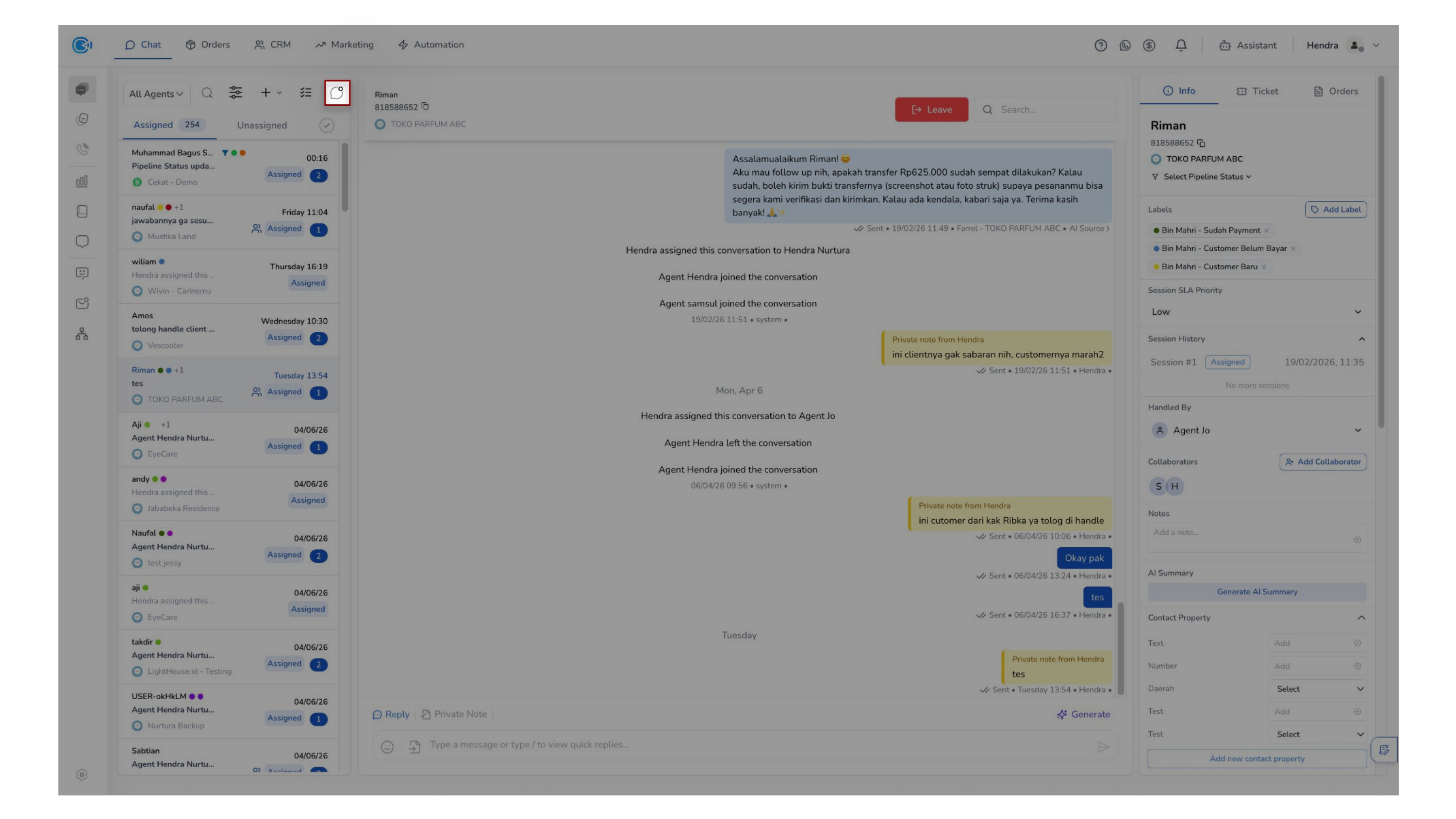 This includes:
- Conversations that have not been replied to
- Conversations that are still in Pending status
Chatbox
Under the set of tools you will find the Chatbox to manage the conversation list. This structure helps you track progress, maintain clear ownership, and ensure that every conversation is properly handled.
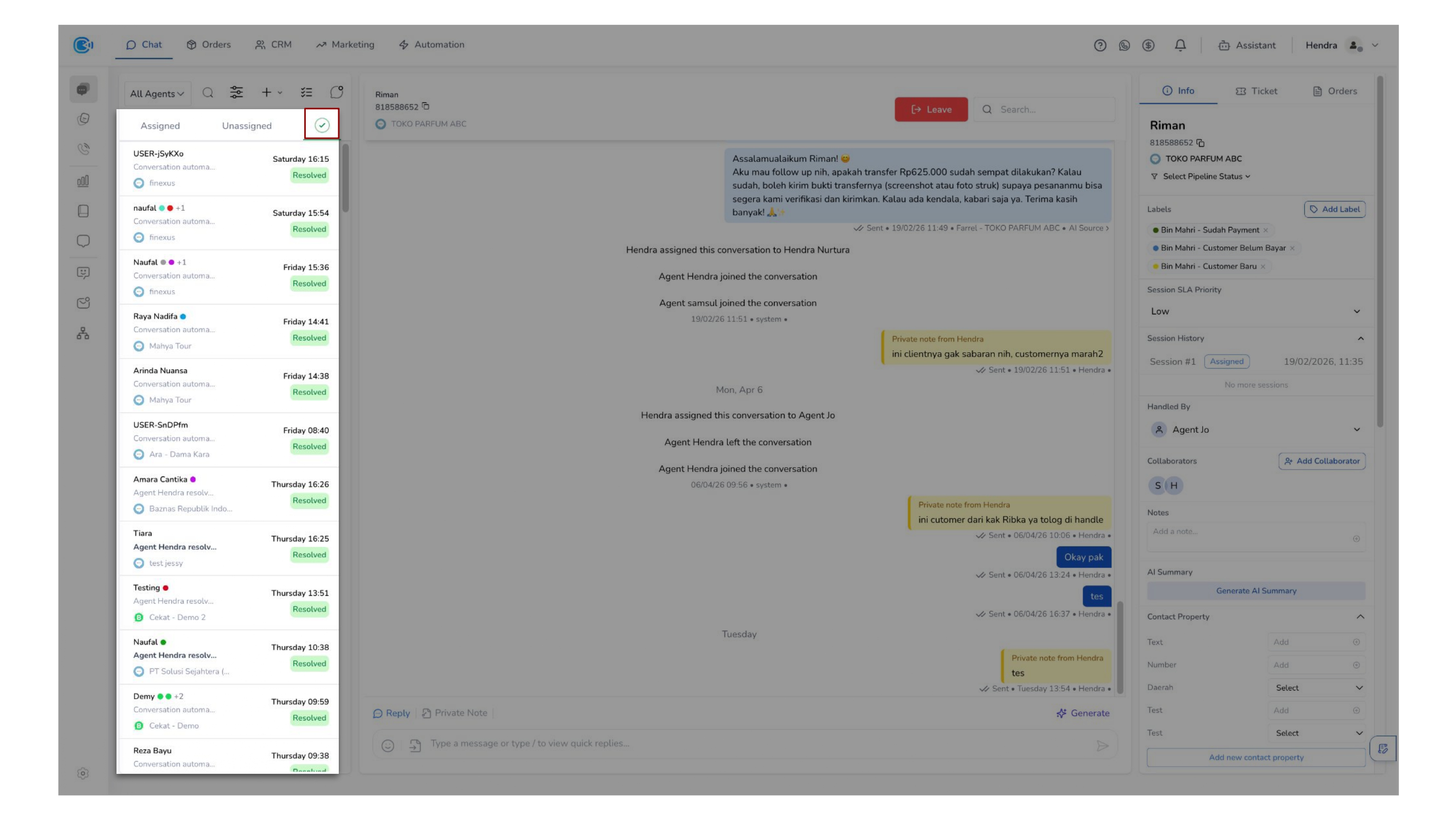
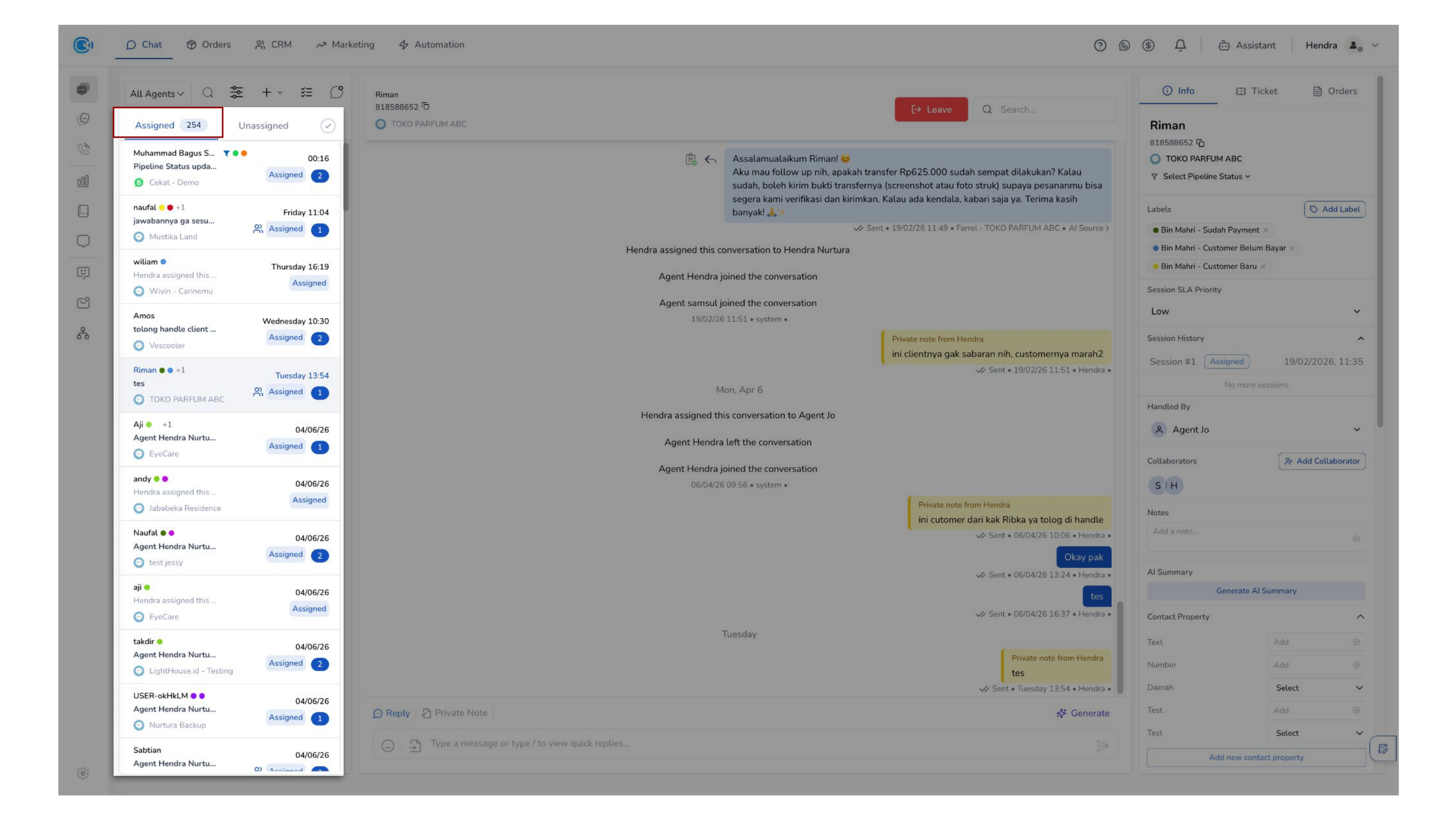
The Chatbox on conversation list organizes conversations into three main categories: Unassigned, Assigned, and Resolved.
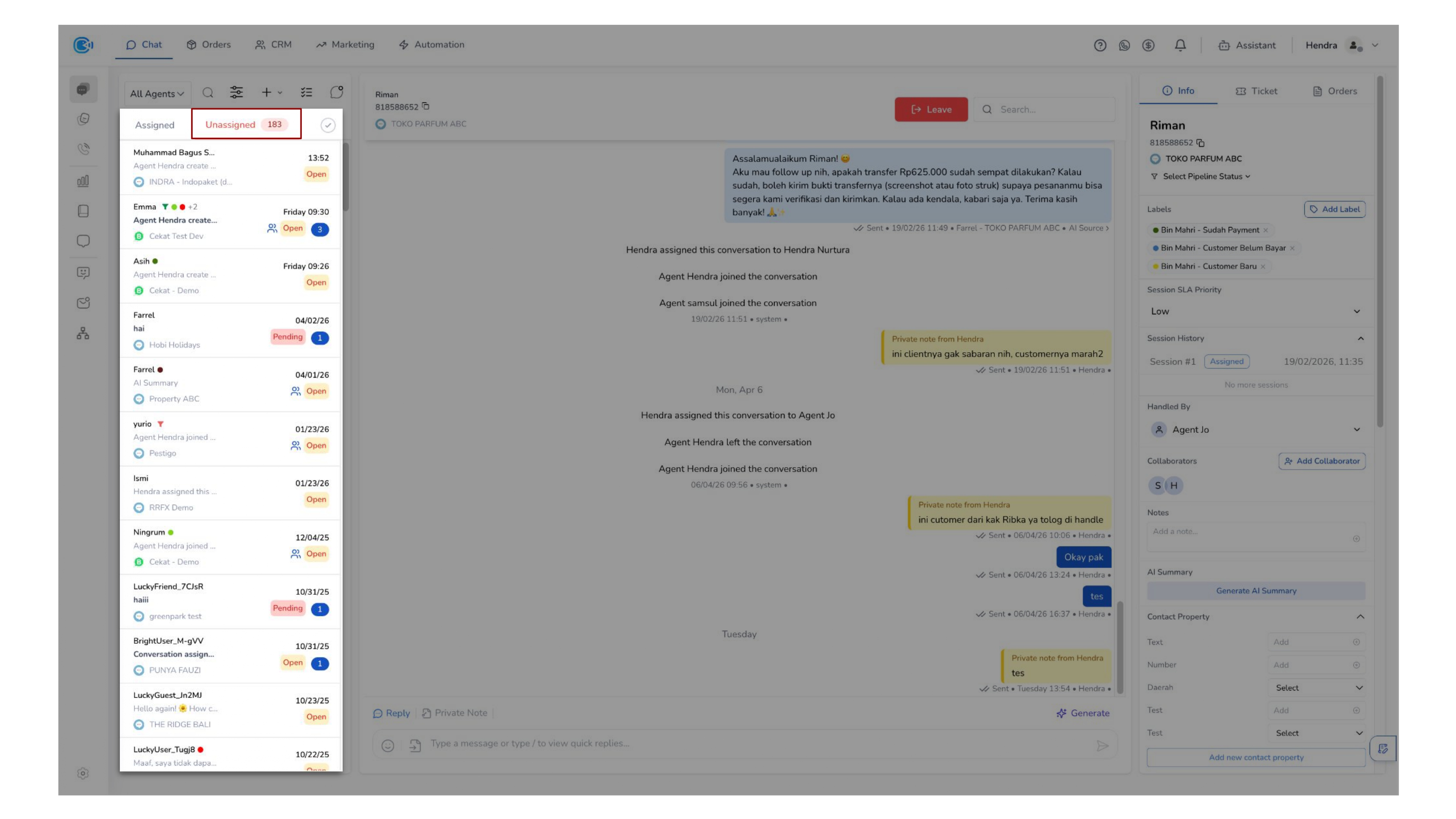
Notes Conversations move through the following stages: Unassigned → Assigned → Resolved
These categories represent the lifecycle of a conversation.
a. Assigned
The Assigned section contains conversations that are currently being handled by an agent. At this stage, AI will no longer respond to the conversation (if Stop AI after handoff is enabled).
Access by Role
- Agent — You can view conversations if the conversation is directly assigned to you, or you are added as a collaborator. If you are a collaborator, a collaborator indicator will appear next to the conversation.
- Supervisor — You can view all conversations handled by your team
- Super Agent — You can view all assigned conversations across the system
Conversation Status
Conversation status helps you understand the current handling state of each conversation, ensuring clear ownership, visibility, and workflow tracking.
- Assigned — Indicates that the conversation has been assigned to an agent and is currently being handled by a human agent, ensuring clear ownership and accountability.
- Pending — Indicates that the conversation has been assigned but is still being handled by the AI agent, allowing automated handling before human takeover when needed.
b. Unassigned
All new conversations are initially placed in the Unassigned section. These are conversations that have not yet been handled by a human agent.
Access by Role
- Agent — You can view conversations that belong to inboxes assigned to you, or are handled by your team
- Supervisor — You can view all unassigned conversations within your team
- Super Agent — You can view all unassigned conversations across all platforms
Conversation Status
- Open — The conversation is currently handled by AI and does not yet require human intervention
- Pending — The conversation requires human assistance but has not been handled due to:
- No assigned agent for the channel, or
- Assigned agents being offline
Available Actions
- Open and review conversations
- Apply filters
- Take over conversations
Once you take over a conversation, it will automatically move to the Assigned section.
c. Resolved
The Resolved section contains conversations that have been completed and marked as resolved.
Access by Role
- Agent — You can only view conversations that you have resolved
- Supervisor — You can view conversations resolved by your team
- Super Agent — You can view all resolved conversations across the system