
Campaign
The Campaign feature allows you to create, manage, and monitor broadcast message campaigns sent to selected customer segments through WhatsApp.
It provides visibility into campaign performance, enabling you to track delivery status and engagement metrics for each campaign.
a. Campaign List
The Campaign List displays all broadcast campaigns that have been created within the system.
This section allows you to monitor campaign status, review performance, and manage campaign execution efficiently.
The following information is displayed for each campaign:
- Campaign Name → Displays the name of the campaign.
- Recipient List → Indicates the recipient list (segment) used for the campaign.
- Delivered → Shows the number of successfully delivered messages compared to the total recipients.
- Status → Displays the current status of the campaign (e.g. completed, failed).
- Sender → Indicates the WhatsApp sender or inbox used to send the campaign.
- Created At → Shows when the campaign was created.
- Send At → Displays the date and time when the campaign was sent.
Actions
Provides access to available actions for each campaign.
Campaign Details
This section shows the performance summary of messages sent through broadcast.
You can monitor how your broadcast messages are delivered and how customers interact with them.
Available Metrics:
-
Total Messages Sent — The total number of broadcast messages sent to recipients.
-
Sent — The number of messages successfully sent to the WhatsApp server.
-
Delivered — The number of messages successfully delivered to recipients.
-
Read — The number of messages that have been opened and read by recipients.
-
Failed — The number of messages that could not be delivered.
-
Replied — The number of recipients who responded to the broadcast message.
-
Filter Each Campaign → Allows you to filter message performance within a selected campaign based on specific delivery and engagement metrics.
The following filter options are available:
-
Sent
-
Read
-
Failed
-
Delivered
-
Replied
-
Button Clicked
-
Agent Replied
-
Export Excel → Allows you to export campaign data for reporting and analysis.
Report Message Details
Provides a detailed breakdown of message-level performance.
- Message Statistics → Displays aggregated performance metrics for the campaign.
Delete Campaign
Allows you to remove the template associated with the campaign if it is no longer needed.
b. Filter Campaign
The Filter Campaign feature allows you to refine and locate campaigns based on specific criteria, helping you monitor and manage campaigns more efficiently.
- Campaign Name → Allows you to search for campaigns by name
- Platform → Filters campaigns based on the selected sender or platform
- Status → Filters campaigns based on their current status (e.g. Failed, Completed, Pending and Processing)
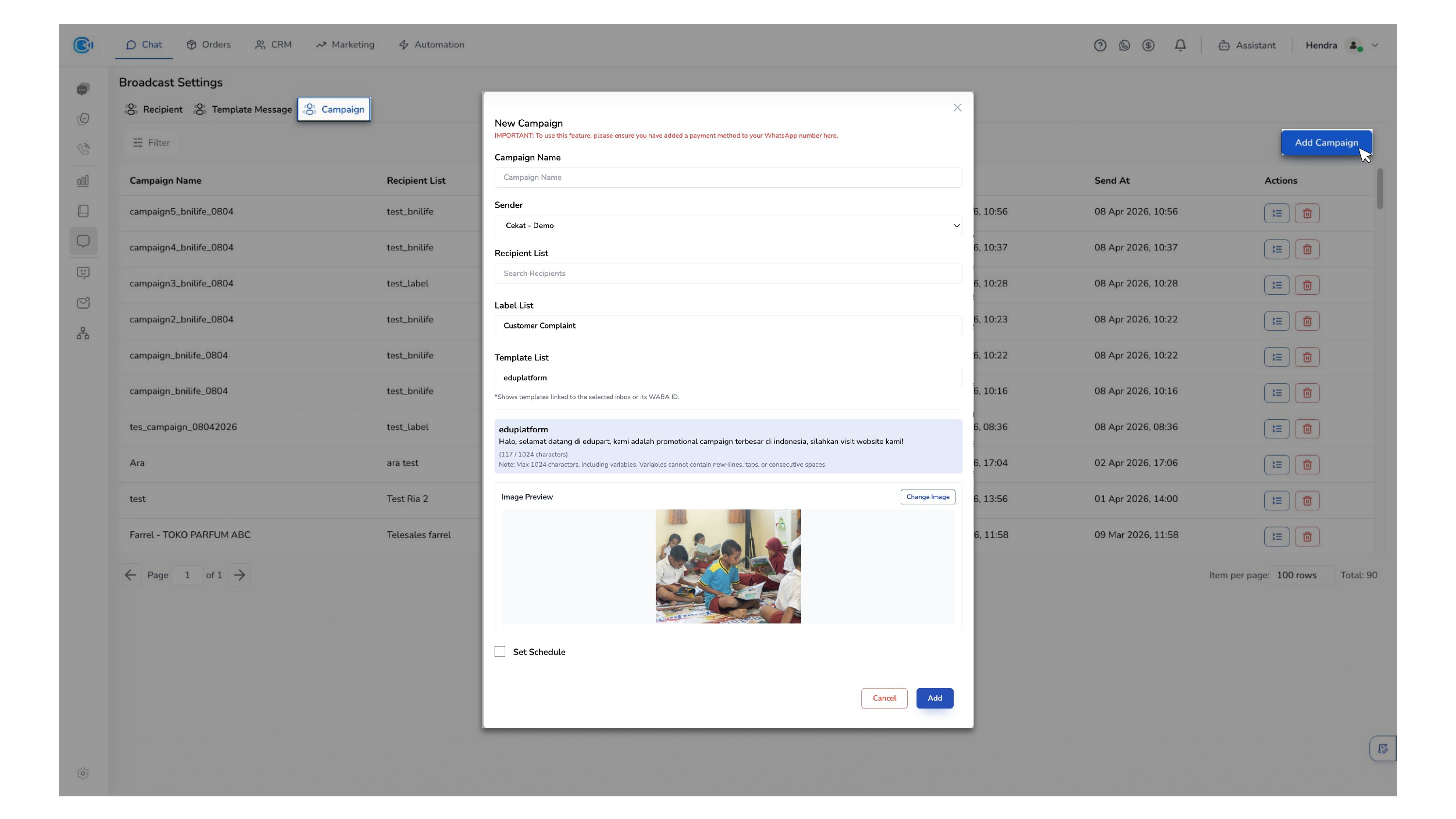
c. Add Campaign
To create and launch a new campaign, follow these steps:
- Go to the Campaign tab
- Click Create Campaign and enter a Campaign Name
- Configure campaign settings:
- Sender / Platform → Must match the number used in the template
- Recipient List → Select from Step 1
- (Optional) Add labels for segmentation
- Select and configure your template:
- Choose an approved template
- Fill variables:
- Manual input (same for all recipients)
- Dynamic input (from CSV/XLS data)
- (Optional) Set a scheduled send time
- Click Create to launch the campaign immediately. You can also schedule the delivery by using "Set Schedule" to send the message at your preferred time.
- Monitor campaign status:
- Processing → Campaign is being sent
- Complete → Campaign delivery finished