
Knowledge Source
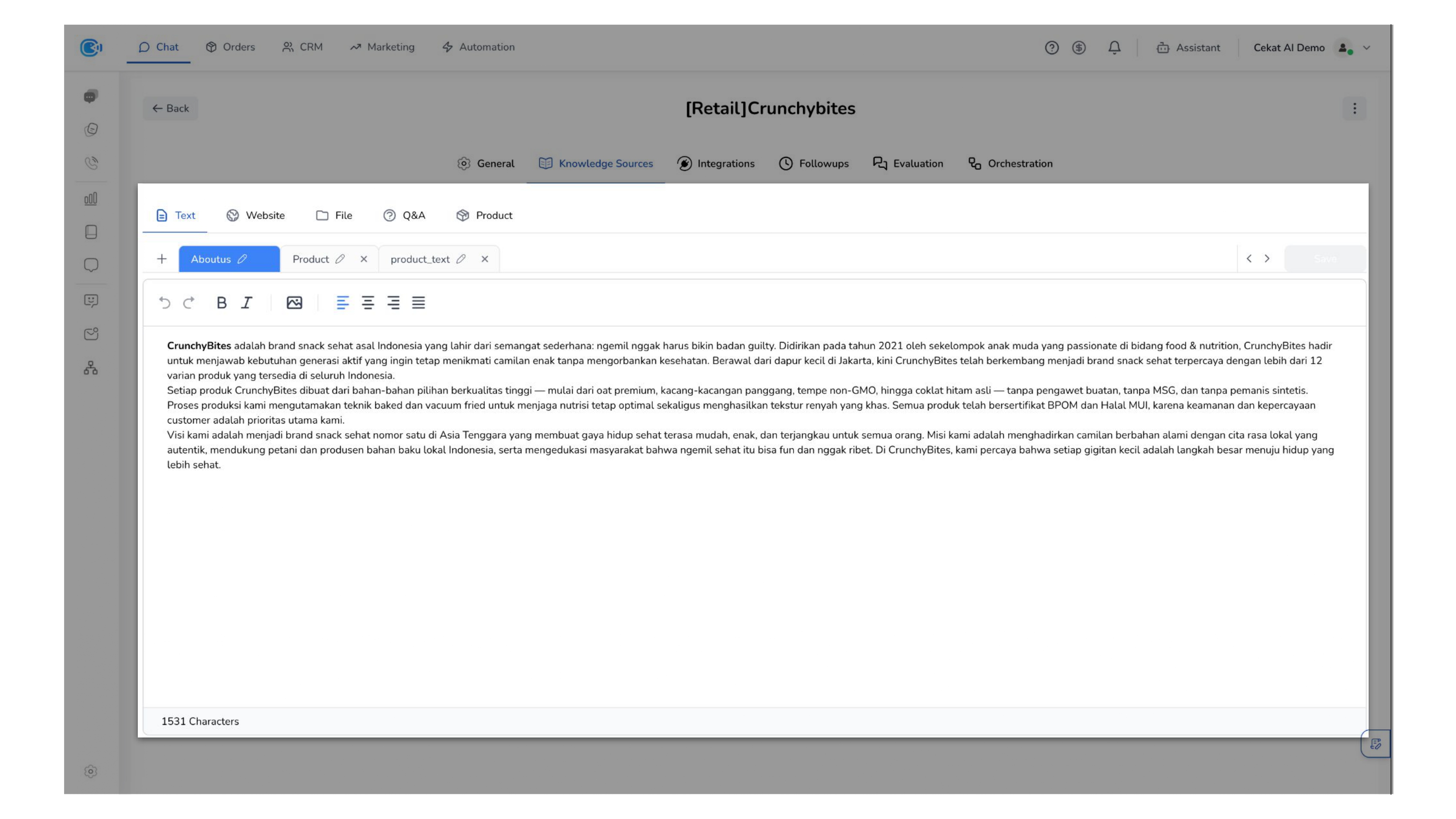
Add the knowledge your AI Agent needs to learn. This can include product information, FAQs, service procedures, internal policies, or any operational guidelines.
This knowledge becomes the intelligence layer that powers your AI Agent's responses.
By training your AI Agent with your business knowledge, you ensure consistent, accurate, and scalable customer communication.
This reduces dependency on manual responses, shortens response time, and improves customer experience consistency across all interactions.
Your AI Agent can also help reduce operational workload by handling repetitive inquiries automatically.
Your AI Agent can be trained using knowledge that is fully specific to your business, including:
- Your products and services
- Your internal processes
- Your customer handling procedures
- Your brand tone and communication style
This allows the AI Agent to communicate in a way that reflects your brand persona—whether formal, consultative, friendly, or technical.
a. Text
The Text section allows you to input text-based information that the AI will use to respond to customer inquiries.
This is the most commonly used and flexible knowledge source.
You can use this section to write or structure any information you want the AI to learn, such as FAQs, SOPs, or product explanations.
In addition, you can organize your knowledge using multiple tabs. Click "+" to create a new tab, rename it using the pencil icon, delete it using the X icon, and rearrange tabs with drag & drop. This allows you to structure information more effectively, helping the AI better understand and process your content.
You can also insert images by clicking the image icon, and add files (PDF, images, videos) by selecting the same icon and choosing Get link by URL. The editor also supports formatting options such as bold, italic, and text alignment to help you structure content more clearly.
b. AI Send Images and File
The AI Send Image feature enables your AI Agent to send images and files as part of its responses during a conversation.
This allows the AI to deliver richer, more informative interactions by sharing visual or document-based content such as product catalogs, price lists, guides, or supporting materials directly in chat.
The AI will automatically send the relevant content based on the conversation context.
Media can be configured through:
Knowledge Source
Supports multiple formats, including images, PDFs, and videos. The AI will send these files based on the conversation context.
To add media via Knowledge Source:
- Go to AI Agent → Knowledge Source
- Open the Text tab
- Click the image icon in the editor
- Select Upload from computer
- Upload your file (PDF, image, video, etc.)
- The file is generated as a link internally, but customers will receive it as a file preview in chat
- Paste the link naturally into your content
- Click Save
Welcome Message
Supports images only. The image will be sent automatically at the start of the conversation.
To add an image to Welcome Message:
- Go to AI Agent → Welcome Message
- Click Upload Image
- Upload your image
- Copy the generated image link
- Paste the link into the Welcome Message field
Once configured, the AI will automatically send the image when a new conversation starts.
c. Website
The Website feature allows the AI to crawl content from the URLs you provide and use it as a knowledge source for training.
You can crawl a single link or multiple links (batch), and the AI will extract relevant content from those pages to better understand your business.
To train your AI using website content:
- Enter the website URL into the Link URL field
- Click Collect Link to start the crawling process
- A Collected Link pop-up will appear, displaying the extracted links
- If you are using batch links, the system can collect up to 30 links. You can select which links to include for training by checking the corresponding options. You can also add more links directly from the collected link pop-up if needed.
- After selecting the desired links, click Train
- The pop-up will close, and the trained links will appear in the list below
You can manage your trained links directly from the list:
- Edit Link — Click the Edit button next to a trained link to modify its content
- Delete Link — Select one or more links, then click the Delete (trash) button. A confirmation pop-up will appear before removal
d. File
The Files feature allows the AI to process uploaded documents (e.g., PDFs) by extracting their text content and using it as a knowledge source. Only text-based files are supported, so ensure your documents contain selectable text (not scanned images).
e. Product
The Product feature allows the AI to learn from product data that you have already created in the Product module.
To make this data available for AI training, products must be imported into the knowledge source.
Once imported, the AI can understand product details and use them to provide accurate and relevant responses to customer inquiries.
To import products into your knowledge base:
- Click Import Product to start the import process
- A pop-up will appear displaying a list of available products
- The product table includes key information such as Product Name, Price, Weight, and other relevant details.
- Select the products you want to import by checking the corresponding boxes
- Click Add Product
- The pop-up will close, and the selected products will be added to your knowledge base
Once imported, the AI will be able to recognize and reference these products in conversations.
To manage imported products, you can remove products from the knowledge source at any time by following these steps:
- Select one or more products by checking the boxes
- Click the Delete (trash) button that appears above the list
- Confirm the action by clicking Yes in the confirmation pop-up