
Conversation Room
The Conversation Room is the main workspace where you interact directly with customers. In this section, you can respond to messages, collaborate with other agents, manage conversation status, and update related ticket or pipeline information—all within a single interface.
The Conversation Room ensures that you can handle conversations with full context, seamless collaboration, and structured workflow integration—enabling faster, more accurate, and more organized customer interactions.
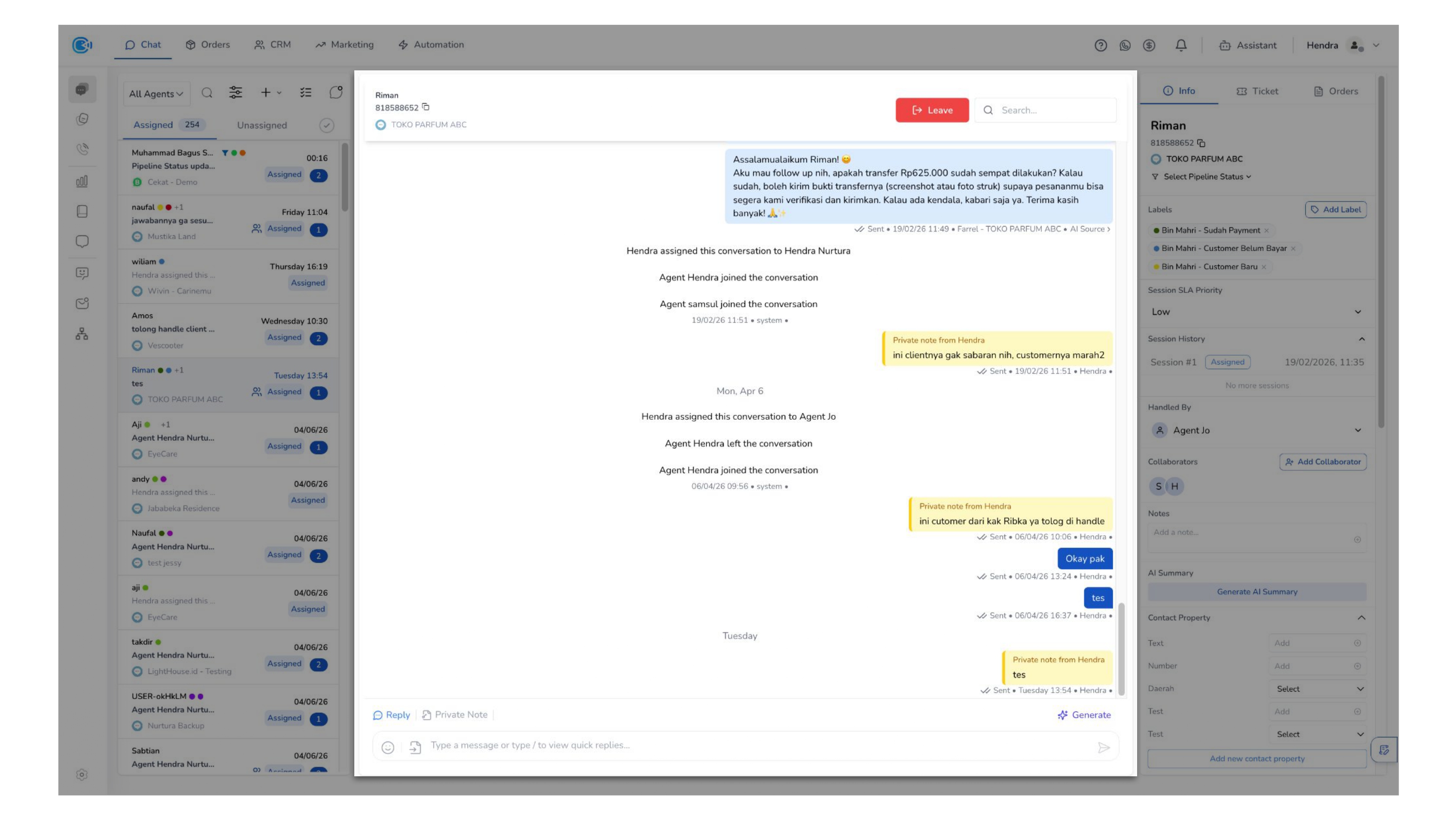
Within this workspace, you have access to a set of tools that support how you communicate, collaborate, and manage conversations effectively.
Conversation Header (Top)
At the top of the Conversation Room, you will find key information and quick actions that help you manage the conversation efficiently.
a. Customer Information
- Name → The customer's display name
- Phone Number → The customer's contact number or unique identifier
- Platform → The communication channel used (e.g. WhatsApp, Instagram, etc.)
b. Conversation Action
- Resolve → Mark the conversation as completed
This action is available for the agent assigned as the handler of the conversation (Handled by).
- Leave → Exit the conversation and remove yourself from the conversation
This action is applicable for agents who are added as collaborators.
c. Search
Enables you to search for specific messages or keywords within the conversation history for faster navigation.
Room Chat (Main Area)
At the center of the Conversation Room, this section is where you interact directly with customers.
Here, you can view the full conversation history, send and receive messages in real time, and manage interactions with clear context and visibility.
a. Reply Specific Message
You can reply to a specific message to maintain context within the conversation.
You can:
- Click Reply on a message bubble
- A preview of the selected message will appear above the input field
- Send your reply
The message will be displayed with a "Replied to" reference, linking it to the original message.
This is especially useful for handling long or complex conversations with multiple topics.
b. Chat Appearance
The chat interface uses visual indicators to help you quickly identify who is responding within the conversation.
- AI Agent → Displayed in light blue
- Human Agent → Displayed in dark blue
- Private Note → Displayed in light yellow
The sender's name (agent or AI) is shown below each message bubble, providing clear visibility of message ownership throughout the conversation.
c. Chat Expiration Rules
Make sure you understand the chat expiration rules for each channel when managing conversations, as they may impact how and when you can respond.
-
WhatsApp 💬
- Standard 24-hour Messaging Windows — Businesses can freely send messages within 24 hours after the customer's last message. This is known as the customer service window.
- After 24-hour Window — Once the 24-hour window has passed, businesses can only send messages using pre-approved message templates.
- Free Entry Point (CTWA) — When a user initiates a conversation via a Click-to-WhatsApp Ad, a new 72-hour messaging window is opened, allowing businesses to send messages without using templates during this period.
Key WhatsApp API Messaging Rules
- Messages must comply with WhatsApp Business policies
- Template messages must be pre-approved before use
- Excessive or irrelevant messaging may impact quality rating
- Messaging limits may vary depending on account tier
-
Instagram DM 📸
Businesses can respond to user messages within a 24-hour messaging window.
Additional messaging beyond this window may be limited and subject to Meta's platform policies.
-
Facebook Messenger 💁
-
TikTok DM 🎵
Reply Bar (Bottom)
Located at the bottom of the Conversation Room, this section allows you to compose and send messages to customers.
Here, you can type replies, attach supported content, and respond to conversations in real time.
a. Reply
This feature allows you to respond directly to customer messages. You can type messages in the input field
- Quick Reply — This feature allows you to quickly insert predefined responses.
- Type "/" to open the quick reply list
- Search and select the desired response
- This helps reduce typing time and maintain consistency in communication.
b. Private Note
Private Note allows you to send internal messages that are only visible to other agents.
You can use this feature to:
- Share additional context
- Communicate internal information
- Leave notes for your team
Private notes appear within the chat flow but are visually distinguished from customer and AI messages.
- Private Note Reminder — This feature allows you to schedule a reminder for a private note.
- Click the ⏰ icon next to Private Note
- Set a specific date and time
- The system will resend the private note and reopen the conversation at the scheduled time.
- This is useful for follow-ups, reminders, or handling tasks that need to be revisited later.
c. Attachment and Emoji
Located at the bottom-left of the input field:
- Attachment (📎) → Send files such as images or documents
- Emoji (😊) → Insert emojis into messages
This allows you to enrich communication and provide better context when needed.