
Template Message
The Template Message feature allows you to manage WhatsApp message templates used for broadcast and customer communication.
These templates must be pre-approved to ensure compliance with WhatsApp messaging policies, enabling you to send messages outside the standard messaging window.
a. Template List
The Template List displays all message templates created within the system, allowing you to monitor approval status and manage template usage. Only templates approved by Meta (WhatsApp) can be used for broadcast and messaging.
Below are the details available for each template:
- Template Name → Displays the name of the message template.
- Template Type → Indicates the type of template (e.g. WhatsApp).
- Platform → Name Shows the associated platform or inbox used for the template.
- Language → Indicates the language of the template.
- Category → Displays the template category (e.g. Marketing, Utility).
- Status → Shows the approval status of the template (e.g. Approved, Rejected).
- WABA ID → Displays the WhatsApp Business Account ID associated with the template.
Actions
Provides access to available actions for each template. The following actions are available for each template:
- Template Details → Allows you to view detailed information and content of the selected template.
- Edit Template → Enables you to modify the template content or configuration.
- Delete Template → Allows you to remove the template from the system.
b. Filter Template
Allows you to filter templates by searching their name or narrowing results based on inbox, WABA, category, and status. This helps you quickly find the relevant template for your campaign. Click Apply to apply the selected filters.
c. Sync Template
The Sync Template feature allows you to synchronize WhatsApp message templates between Meta and the Cekat system, ensuring that your template list remains up-to-date with the latest data and approval statuses.
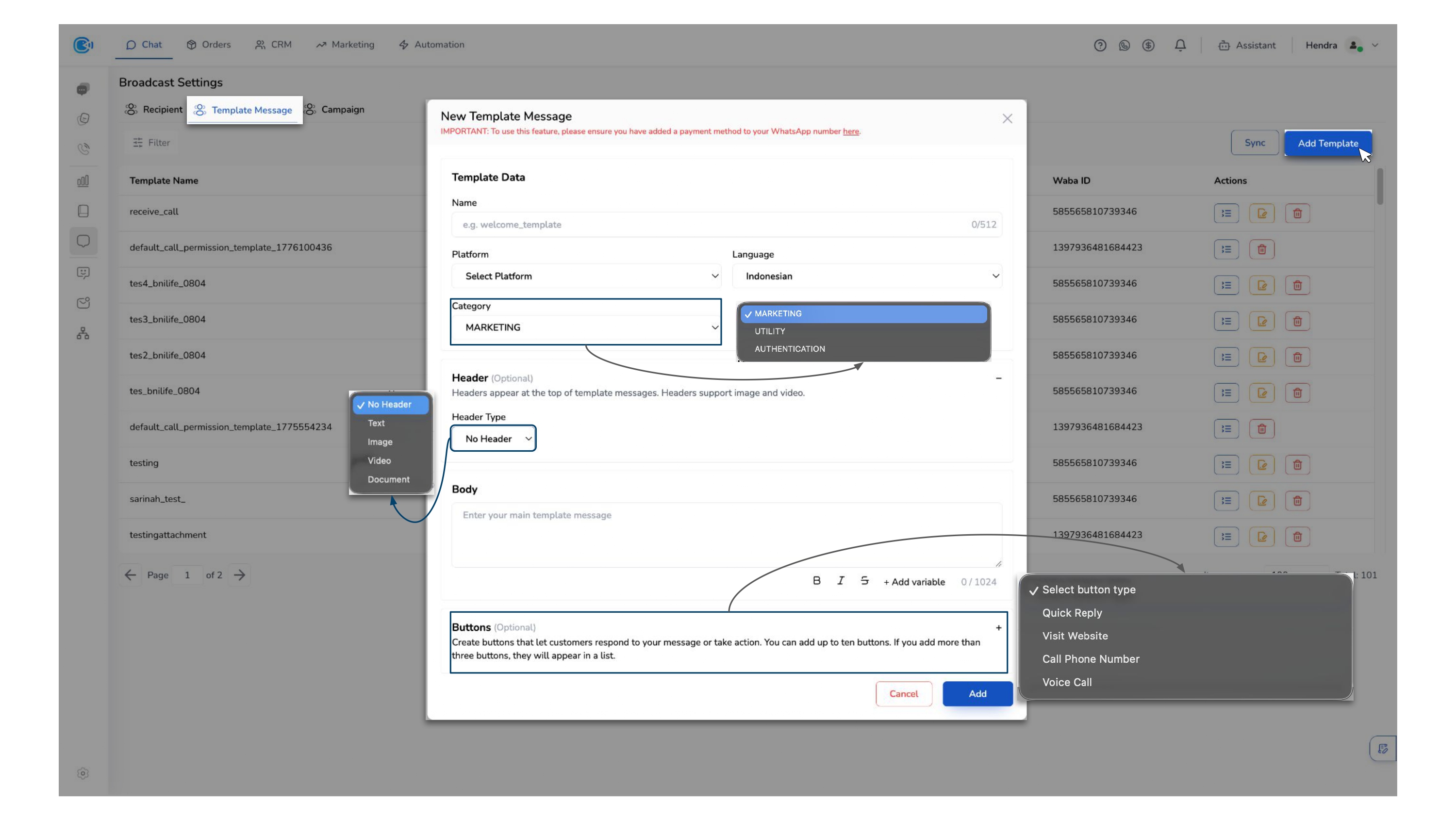
d. Add Template
This section defines the message that will be sent to your audience. Broadcast requires the use of pre-approved template messages from Meta to ensure compliance.
Only templates with Approved status can be used for sending.
To create a new template, follow these steps:
- Go to the Template Message section
- Click Add Template to open the template creation form
- Enter a Template Name
- Select the Platform
- Choose the Language
- Select a Category (e.g., Marketing) — Make sure the category aligns with your message content to ensure approval.
- (Optional) Add Header — Headers appear at the top of the message and can be used to provide additional context or visual elements.
- Select a Header Type if needed:
- Text
- Image
- Video
- Document
- Select a Header Type if needed:
- Enter your message in the Body field
- (Optional) Add variables to personalize the message
- (Optional) Add Buttons — Buttons allow customers to take quick actions or respond directly to your message. You can add up to 10 buttons. If more than 3 are added, they will appear in a list.
- Select a Button Type if needed:
- Quick Reply — Allows customers to respond with predefined options, making interactions faster and more structured.
- Visit Website — Directs customers to a specific URL, such as a product page or landing page.
- Call Phone Number — Enables customers to initiate a phone call to a specified number.
- Voice Call — Allows customers to initiate a WhatsApp voice call directly from the message.
- Select a Button Type if needed:
- Click Add to submit the template
- Once submitted, the template will go through an approval process before it can be used in campaigns